Need
Somebody,
Help
Need
Somebody,
Help
Need
Somebody,
Help




Marking Experiences
Photos and Past Moments
iCloud and Data
Troubleshooting
Tips
Say “Siri → P.E.A.”
Or hold the iPhone side button and spell out P.E.A. to mark a good moment.
Manage → Settings → Turn on Associate Photos
Then create moments from photos in the calendar and on place cards. Photos stay in your library.
Manage → Import & Export → Back up P.E.A.
The only one who can see your data is you, so make sure to back up your archive every now and then, in case you need to play it back in.
Tap with three fingers → Undo
This lets you revert adding a topic, neutralizing an experience, or even changes made to many experiences at once.
Say “Siri → Note in P.E.A.”
Marks an experience and lets you leave a note. With Apple Intelligence, Siri may not always recognize this. That is a known issue.
Say “Siri → P.E.A. listen”
Capture any song playing around you, to identify and remember it, or replay it later from the experience.
Say “Siri → P.E.A. info”
Have Siri read out all of P.E.A.’s Siri commands.
Experience → Type a name or topic that you added
It shows as a suggestion below, one tap to add. You can also write “with” or “at”, or use “#” to get a list of topics and “@” for people and places.
Manage → Mottos → Type three words
Mottos appear on the Archive page and sync across all devices.
Filters → Combine people, places, topics, time, and more
Use this to retrieve super specific moments.
Index → Select the month or year header
Jump straight to that month or year in the Calendar.
Calendar → Search → Type a day, month, or year
Like “2026”, “June 2025”, or even “Halloween”.
On iPhone → Experience → Swipe the card up/down
See the next or previous experience.
Hold the watch face → Add P.E.A.
This adds a dotted ring. Mark a good moment to fill it in. It resets at midnight.
iPhone Home or Lock Screen → Touch and hold → Add Widget → Select P.E.A.
Put your mottos and your life first, ahead of other apps.
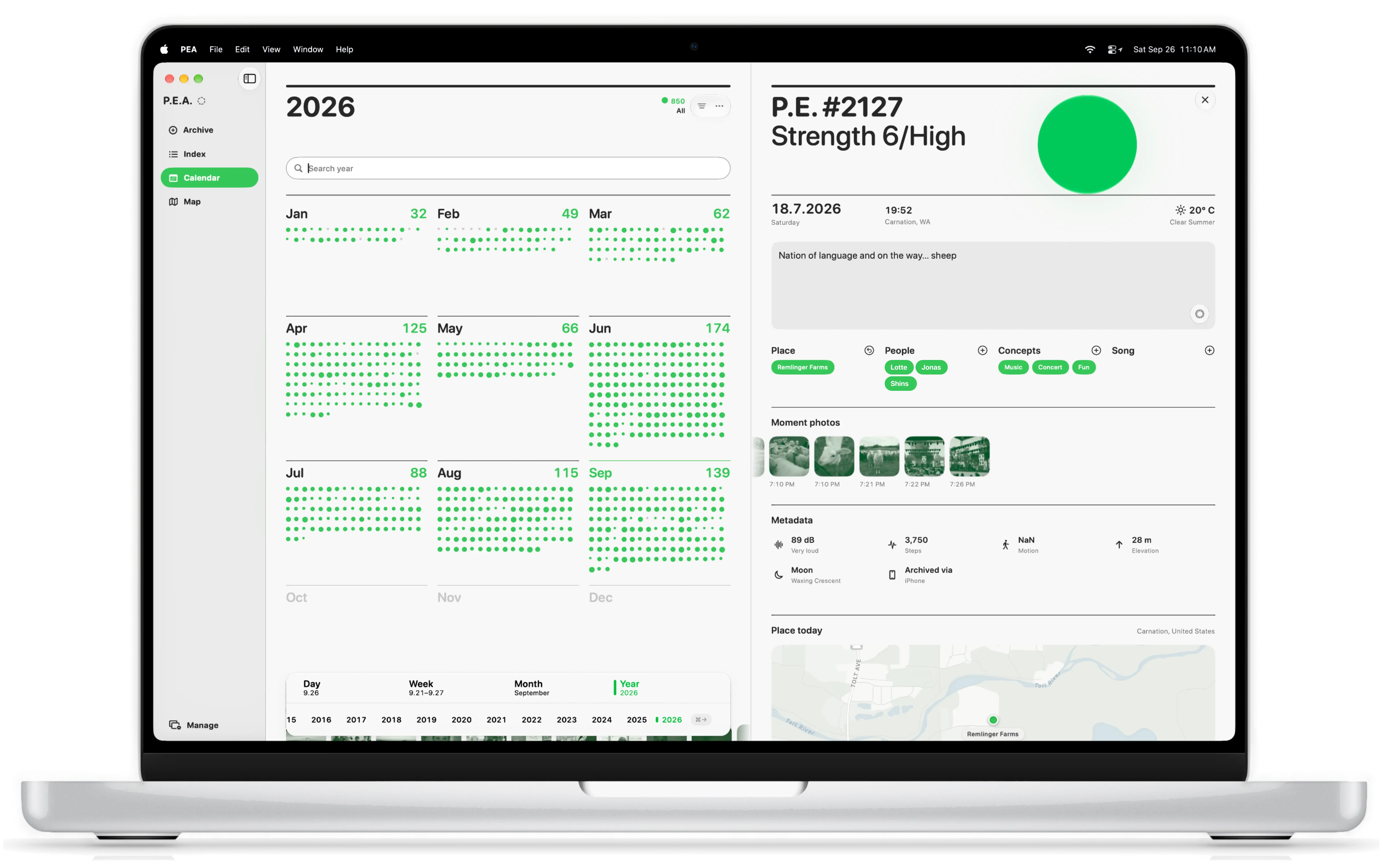
Mac → App Store → Search for Positive Experience Archive → Download
Get P.E.A. on your Mac.
Mac → Index → Select multiple rows
Edit more than one experience at the same time. This lets you, for example, associate the coffee topic with every café you visited.
Bring data from another app
Learn about import
Bring in experiences from Day One, Swarm, Foursquare, or a spreadsheet. The format page explains how to prepare the file and import it into P.E.A. Back up your existing archive first.
Need more help?
Email P.E.A. support
When writing, let us know which device you use (iPhone, iPad, Mac or Apple Watch), its system version, and what you expected to happen. A screenshot helps too. Please do not send a backup file unless we ask: it holds your whole archive in plain text.
Colophon
Positive Experience Archive / P.E.A.
is made by Florian in Seattle with care and good intentions.
Made with
Ableton / Acorn / Apple Watch / BBEdit / Claude Code / CleanShot X / Darkroom / Figma / Framer / FUJIFILM X100T+V / GitHub / HandBrake / iCloud / Icon Designer / iPhone / Keynote / Linear / JavaScript / Mac Mini / MacBook Pro / Paper / Pencil / Pixelmator Pro / Photos app / Python / SF Rounded / Sketch / SwiftUI / Terminal / Xcode
2163 P.E.s archived in the process.
When we lose focus,
we forget who we are.
No animals harmed,
human-tested only.
”Support people, not corporations.”
—David Watanabe
Positive
Experience
Archive
©2026 Fangohr, LLC